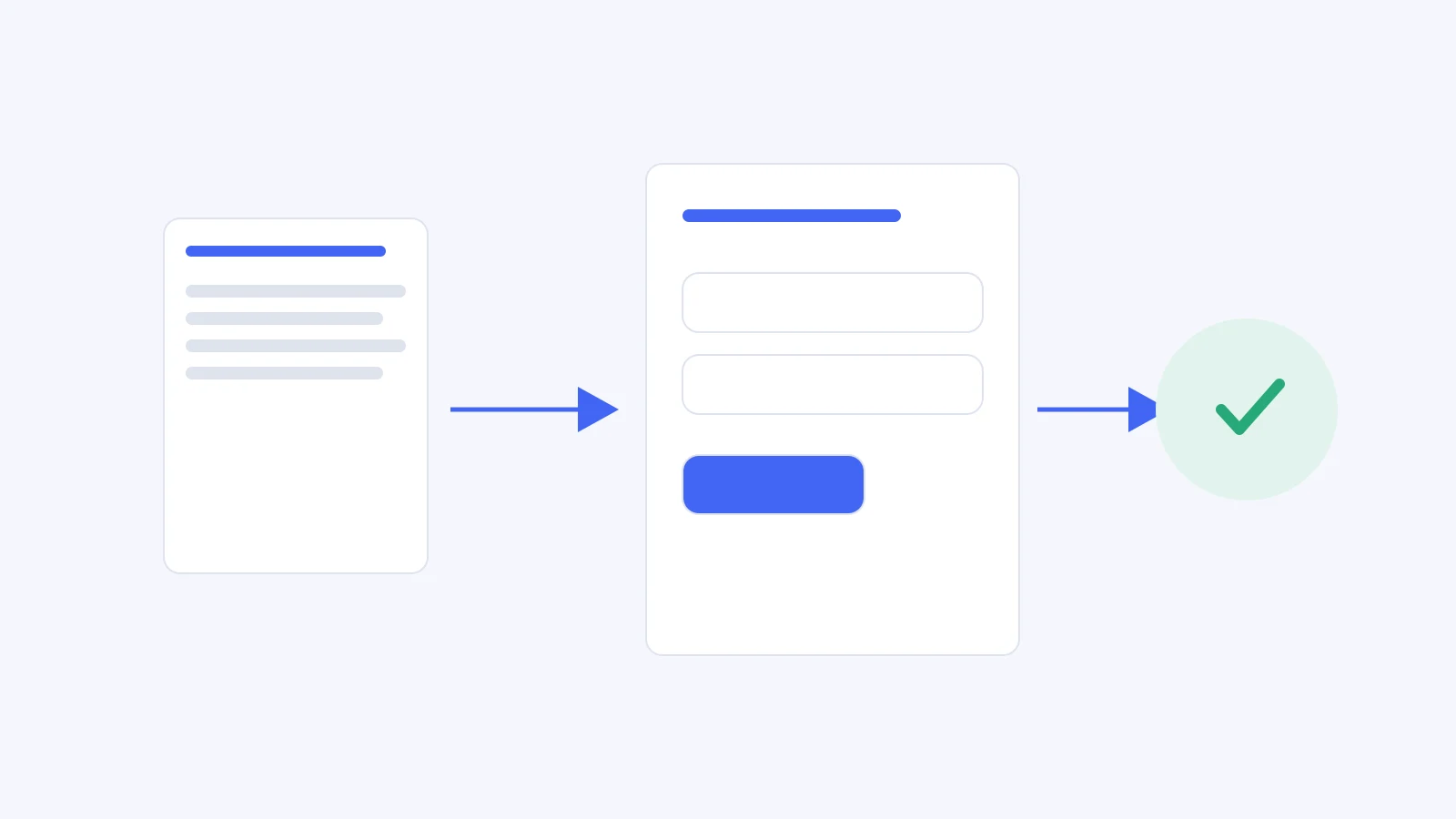
To turn product requirements into a clickable AI prototype, first map each requirement to a screen, state, and observable result. Give the generator that matrix, a bounded brief, and sample data. Then click through the successful path and the important failure paths, recording where the prototype disagrees with the requirements.
The result should help a Product Owner and Product Builder make a decision. A convincing screen is useful only if reviewers can test the behavior they are discussing. This guide follows a B2B invitation from its initial requirements to a small, runnable browser prototype.
The example is a deliberately simulated product called Northstar Workspace. It sends no email, creates no accounts, and changes no production data. Its controls let you inspect administrator, member, valid-invitation, and expired-invitation scenarios.
Choose one question for the prototype to answer
Begin with: Can an administrator invite a teammate with the intended role, and can the invitee understand how to accept or recover? This keeps the review about an end-to-end task. A request to “prototype our onboarding” is too broad to expose which decisions are fixed and which are still open.
A prototype can reveal unclear copy, missing states, and confusing navigation. It cannot prove that authorization, email delivery, or invitation expiry is correctly implemented on a server. Our guide to prototypes, proofs of concept, and MVPs explains how to match the artifact to the uncertainty you need to investigate.
Some tools can turn written requirements into interactive designs; for example, Figma describes this capability in its PRD-to-prototype workflow. The method below also works with a coding assistant that produces local HTML. Choose a tool that can expose the states you need, let you inspect the result, and preserve a version you can review.
Write a bounded input brief
Use a compact brief with decisions the generator must preserve. The following is the complete product input for this example. The expiry policy and role names are illustrative decisions for Northstar, not StoriesOnBoard defaults.
Product: Northstar Workspace, a fictional collaboration app. Actor: an administrator inviting one teammate. Outcome: the teammate joins the intended workspace with the selected role.
Rules: only administrators can send invitations. The administrator enters an email and chooses Viewer or Editor. An invitation is valid for seven days in this example. An expired invitation cannot be accepted; it offers a replacement request. A member attempting to invite sees an explanation and an administrator-contact route.
Scope: one workspace, one invitation at a time, local mock data. Excluded: real email, authentication, billing, bulk upload, and server enforcement. Review question: can participants complete the journey and explain their resulting access?
Give requirements stable IDs before generation. When reviewers later request a change, the ID lets you distinguish a behavior correction from a new idea. Keep unknowns explicit: if the team has not decided whether existing members may change roles through an invitation, label that case unresolved and leave it outside the demo.
Map requirements to screens and states
Write the matrix before requesting attractive UI. Each row should have a visible result someone can check. If a requirement cannot be tested through a screen, note the separate evidence it needs.
| Requirement | Screen or state | Observable result |
|---|---|---|
| R1 · Only administrators invite | Invite teammate; member denied | Member cannot send and sees an administrator-contact action. |
| R2 · Email and role are required | Invitation form; invalid input | Missing or malformed email is explained; Viewer is the explicit default. |
| R3 · Show what was requested | Invitation prepared | Confirmation repeats the email, workspace, and selected role. |
| R4 · Accept a valid invitation | Invitation details; joined | Invitee reviews the role, accepts, and sees the workspace welcome state. |
| R5 · Expired links need recovery | Expired invitation; replacement requested | Accept is unavailable; replacement produces a visible confirmation. |
The “Invitation prepared” state deliberately says that no email was sent. Reviewers should not mistake a mock success state for evidence that a backend integration works. Keep that distinction on the screen, not only in the meeting invitation.
Give the generator an interaction contract
An AI clickable prototype generator needs more than the requirement titles. Specify which controls change which states, what data is retained, and how reviewers reset the example. Use this prompt with the brief and matrix:
Build a local, browser-based prototype for the attached Northstar brief.
Implement R1–R5 and keep their IDs in a review checklist.
Use screens for invitation entry, invitation review, and workspace welcome.
Add explicit invalid-email, member-denied, and expired-link states.
Include a scenario selector and a reset control for reviewers.
Keep the chosen email and role through confirmation and acceptance.
Use only fictional sample data and local memory; make no network requests.
Label the experience as a prototype and every simulated side effect as simulated.
Use semantic buttons, form labels, visible keyboard focus, and clear errors.
Do not add billing, bulk invitations, real login, or extra product features.
After building, list the paths tested and any requirement still unsupported.
Ask the tool to show its assumptions before you accept the result. A generator may invent an account-creation screen because invitations often involve one. That would be a new decision, not a harmless visual flourish. Keep the prototype within the brief until the team deliberately expands it.
For error messages, follow the basic principle in W3C's form notification guidance: explain the problem and how to recover, and provide clear success feedback. A red border alone does not tell a reviewer what happened.
Walk through the working example
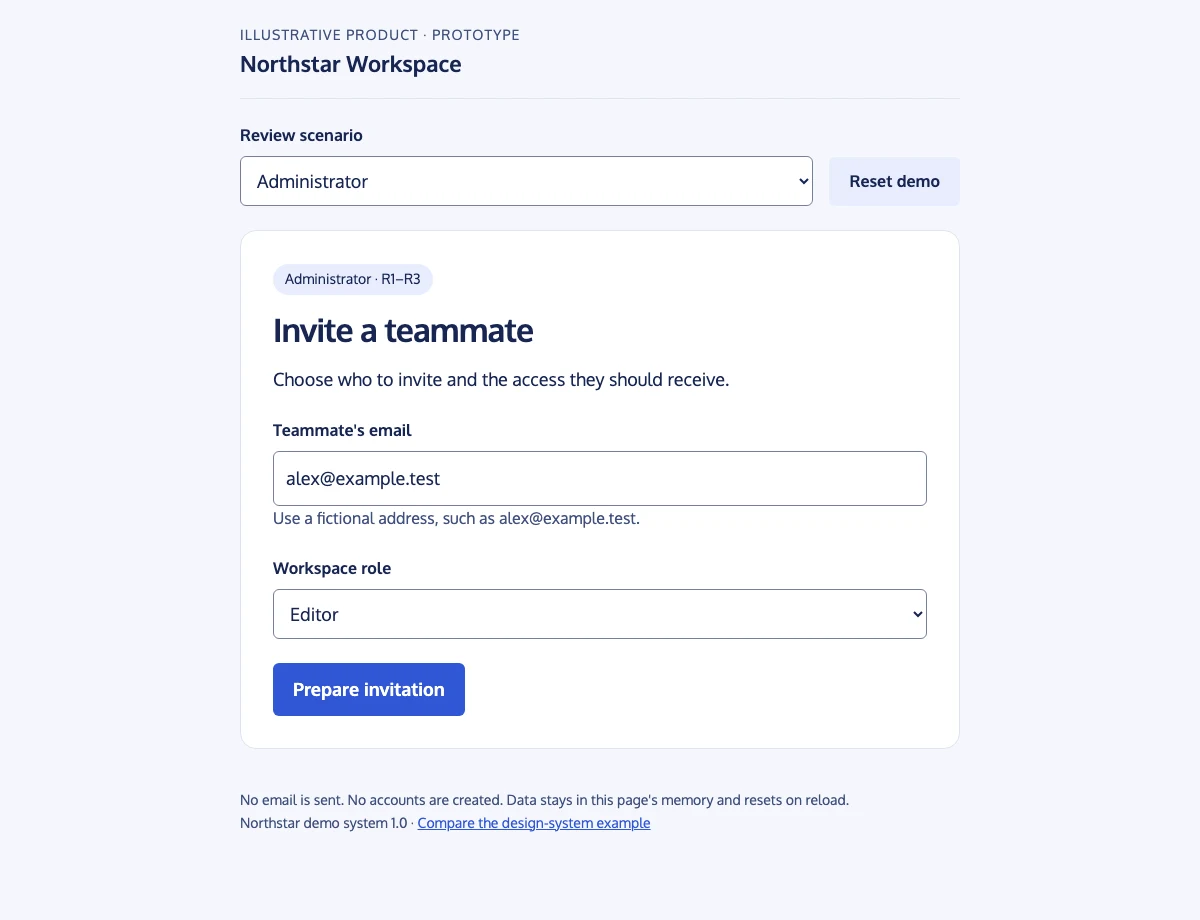
Open the Northstar invitation prototype. Use only the fictional addresses supplied with the example. The scenario selector is a review aid; a real product would obtain the user's role and invitation state from trusted application data.
- Select Administrator, enter alex@example.test, choose Editor, and prepare the invitation. Check that the confirmation preserves all three details.
- Open the simulated invitation. Review the workspace and role, then accept. The welcome screen should say Editor, rather than silently returning to Viewer.
- Reset and select Expired invitation. Confirm that acceptance is unavailable and that requesting a replacement leads to an explicit simulated confirmation.
- Reset and select Member without permission. Confirm that the form is replaced by an explanation and a way to contact the administrator.
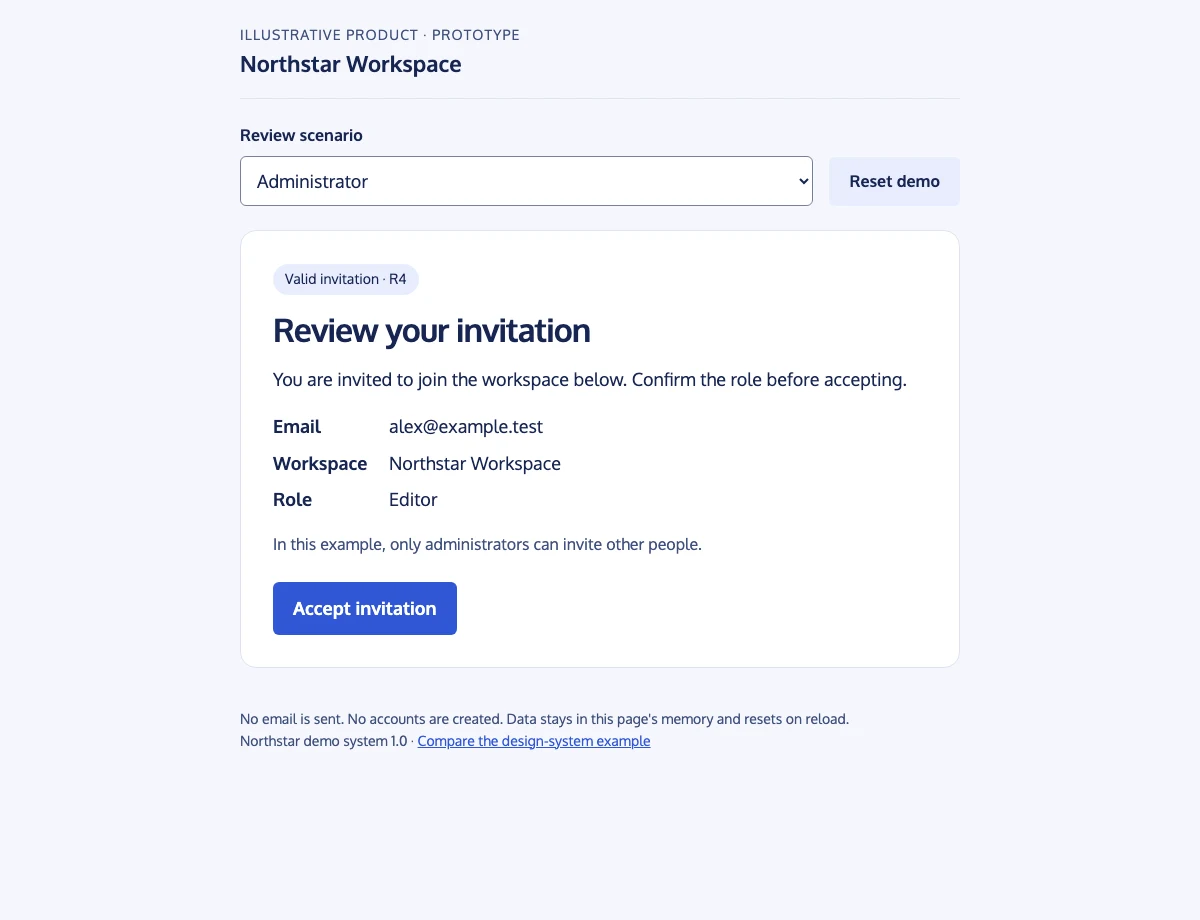
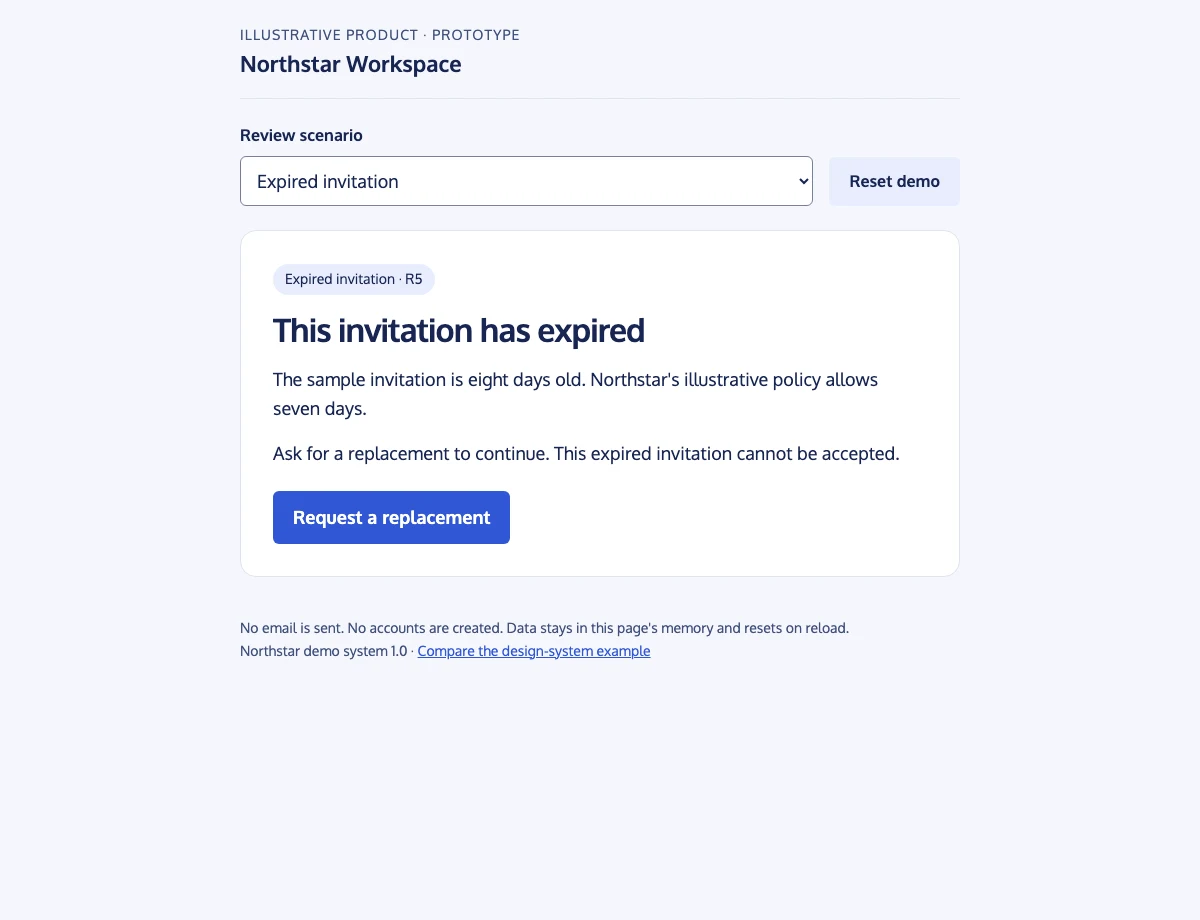
The supplied demo is a working illustration for this article. Its browser checks cover role preservation, invalid input, valid acceptance, expired-link recovery, and the member-denied path. Those checks demonstrate the mock's behavior; they do not establish production authorization or email reliability.
Review against the matrix, not visual confidence
Give each reviewer one task and observe where they hesitate. An administrator can prepare an Editor invitation; an invitee can explain what access accepting it grants; a member can find the escalation route. Avoid explaining the intended click sequence while they are trying to understand it.
| Test | Pass condition | Record if it fails |
|---|---|---|
| Happy path | The selected role survives entry, review, and welcome. | Requirement ID, wrong state, and the action that produced it. |
| Invalid email | No invitation is prepared; correction is clear. | Input, message, and whether entered data was retained. |
| Expired invitation | Accept is absent; replacement gives feedback. | Any route that accidentally reaches welcome. |
| Unauthorized sender | No send control is available; a next action exists. | Whether the explanation identifies who can help. |
| Keyboard review | Controls can be reached and focus is visible. | Unreachable control or ambiguous focus position. |
Record observation separately from interpretation. “The reviewer reread the role twice” is an observation. “The role label is unclear” is a hypothesis. A follow-up question may reveal that they understood the label but did not know the organization's policy for editors.
Turn feedback into requirement changes
Suppose a reviewer asks whether Editor includes permission to invite others. The current brief says only administrators invite, but the acceptance screen does not explain that boundary. Update R4 to include a short permission summary, then change only the review screen and rerun the affected tests.
Use a small decision log: observation, requirement ID, decision, owner, and prototype version. Label new requirements separately from corrections. “Allow bulk CSV invitation” expands the feature; “Preserve the selected role” repairs the existing example.
Connect accepted changes to the relevant stories and acceptance criteria. Our guide to user stories and requirements helps separate user value from detailed rules. A story map can retain the invitation journey while linked prototype evidence explains the interaction the team reviewed.
Prepare a useful handoff
Share the brief, requirement matrix, prototype version, test record, and unresolved decisions together. Mark every mock boundary: authorization, invitation storage, expiry enforcement, actual email delivery, and concurrency need engineering work and independent tests.
Keep the prototype disposable enough to correct. If a review invalidates the flow, revise the requirements before polishing the screens. The value of an AI prototype from requirements is the evidence it gives the team about the next decision.
Use our acceptance criteria guide to turn the reviewed invitation behavior into clear, testable stories for delivery.